

If you’re shopping for a Mac right now, you’ve probably run into the Apple Silicon vs Intel question, and it matters more than most spec-sheet comparisons. Apple stopped selling Intel-based Macs in 2023, but millions of them are still in circulation, often at tempting prices on the used market. Meanwhile, the M-series chips have redefined what people expect from a laptop: all-day battery, silent operation, and performance that embarrasses machines twice their price.
But if you care about keeping your data safe, and we’d argue every Mac owner should, the differences run far deeper than speed. The two platforms handle software compatibility, virtualization, hardware-level security, and long-term macOS support in fundamentally different ways. Pick the wrong one for your workflow, and you could end up with a machine that can’t run a critical app, or worse, one that stops receiving security patches while it’s still your daily driver.
Key Takeaways
- Apple Silicon is the better choice for most Mac buyers today. M-series Macs offer strong performance, better power efficiency, longer battery life, quieter operation, and a newer hardware security architecture.
- Intel Macs still have specific advantages. Native Windows through Boot Camp, older x86 software, legacy drivers, and certain specialized peripherals can make an Intel Mac the more practical choice for specific workflows.
- Software compatibility matters more than benchmark scores. Before choosing between Apple Silicon and Intel, check whether the applications, plugins, drivers, virtual machines, and peripherals you rely on work properly with your chosen architecture.
- Rosetta 2 makes the transition easier for many Intel Mac apps. Most common Intel-based applications can run through translation on Apple Silicon, but older system extensions, specialized drivers, and some professional tools may have compatibility limitations.
- Windows support is one of the biggest differences between the platforms. Intel Macs can run Windows natively through Boot Camp, while Apple Silicon Macs rely on virtualization and Windows for Arm, which may introduce compatibility limitations for some software and hardware.
- Apple Silicon provides a more modern security foundation. Its integrated security architecture includes features such as Secure Enclave, secure boot, and hardware-backed encryption, while Intel Macs vary depending on whether they include the T2 Security Chip.
- Long-term macOS support should be part of any buying decision. Apple Silicon is the platform Apple now designs macOS around, making it the safer choice for buyers who want to keep their Mac for several years.
- Memory and storage need more careful planning on Apple Silicon Macs. Because these components generally cannot be upgraded later, users running virtual machines, creative applications, or large projects should choose an appropriate configuration at purchase.
From the Intel Era to Apple Silicon: A Brief History of the Transition
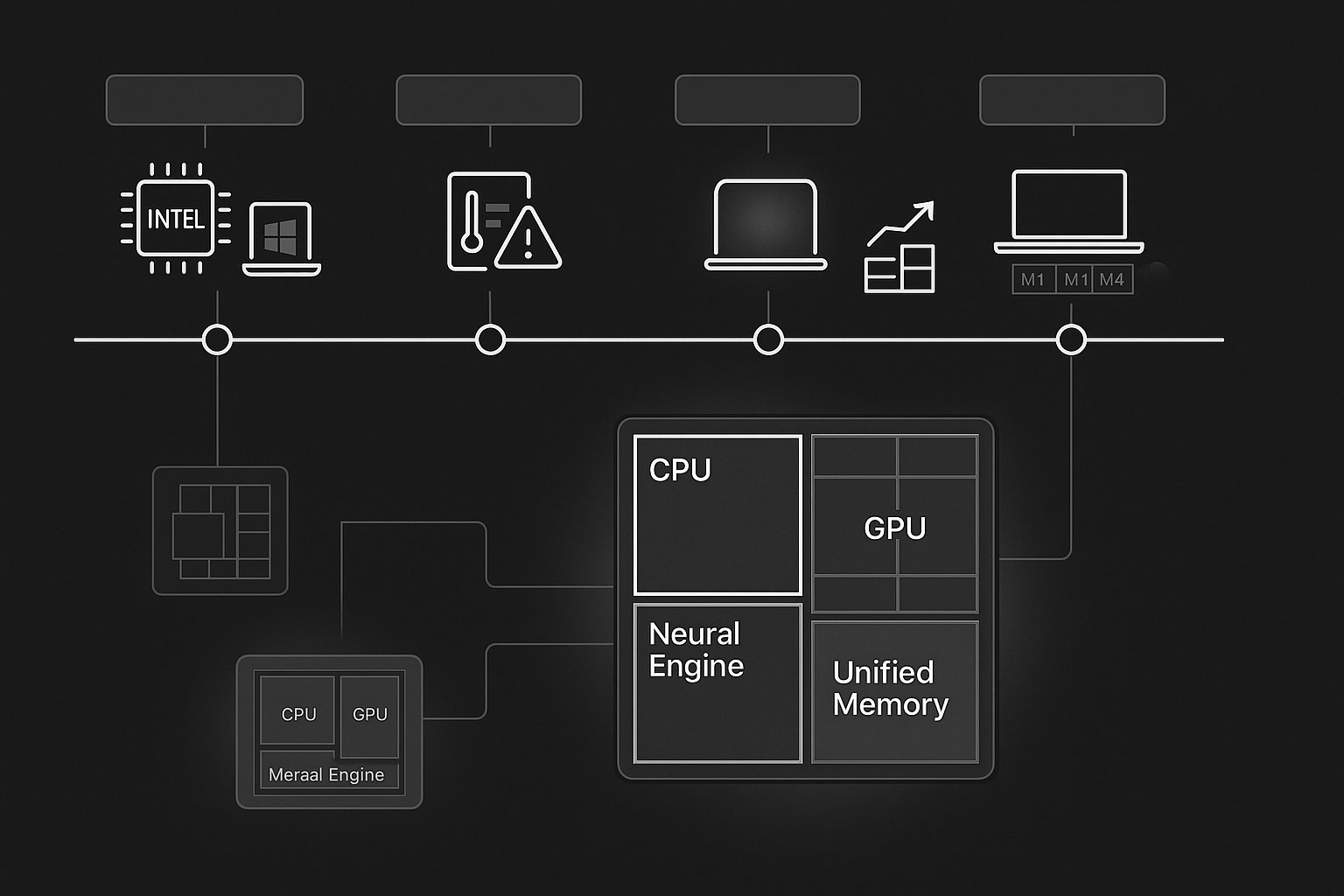
Apple has switched processor architectures before, and each time, it reshaped the Mac. In 2006, Apple moved from PowerPC to Intel chips, chasing better performance and energy efficiency. That switch gave us thinner MacBooks and, notably, Boot Camp, which let Macs run Windows natively for the first time.
The Intel era lasted about 17 years. But by the late 2010s, Apple was hitting walls: Intel’s chip roadmap kept slipping, thermal constraints limited laptop design, and Apple had already proven with the iPhone and iPad that it could design world-class silicon in-house.
At WWDC 2020, Apple announced the transition to its own Arm-based system-on-a-chip design, branded Apple Silicon. The first M1 Macs shipped in November 2020, and the results surprised even skeptics, a fanless MacBook Air outperforming Intel machines that cost far more. Apple expanded the lineup with the M1 Pro, Max, and Ultra, then successive M2, M3, and M4 generations.
The transition wrapped up in June 2023 when Apple discontinued the Intel Mac Pro, its last x86 holdout. Since then, every new Mac ships with Apple Silicon.
One detail worth remembering: this wasn’t just a CPU swap. Apple Silicon integrates the CPU, GPU, Neural Engine, media encoders, and memory onto a single chip, a fundamentally different design philosophy than the Intel Macs it replaced, and one that lets Apple build security protections directly into the hardware rather than bolting them on afterward.
Performance Benchmarks: Speed, Efficiency, and Real-World Results
Independent benchmarks have consistently shown Apple Silicon outperforming its Intel Mac predecessors in both single-core and multi-core tasks, and the gap keeps widening with each generation.
When the M1 launched, Apple claimed up to 3.5x faster CPU performance and up to 6x faster GPU performance compared to the previous Intel generation. Real-world testing largely backed this up, especially in workloads like video export, code compilation, and photo editing. The newer chips have gone much further: CPU core performance improved by roughly 62% between the M1 and M4 generations, and the M4 posts single-core scores well ahead of competing x86 flagships.
Graphics tell a similar story. The M1 Max delivered around 10 TFLOPS of GPU compute, while the M4 Max reaches about 16 TFLOPS, and rendering benchmarks like Blender show even larger generational gains.
Why the architecture matters more than the numbers
Two design choices explain a lot of the real-world difference:
-
Efficiency cores. M-series chips pair performance cores with efficiency cores (the M4 uses 4 performance + 6 efficiency cores). Background tasks, syncing, indexing, security scans, browser tabs you forgot about, run on the efficient cores, leaving the fast ones free for demanding work. That’s a practical win: protective software can run continuously without dragging down your machine.
-
Unified memory. The CPU and GPU share one pool of high-bandwidth memory, so data doesn’t need copying between separate RAM and VRAM. This speeds up creative and machine-learning workloads considerably, though it also means you can’t upgrade RAM later, spec it right at purchase.
One caveat competing articles often skip: raw benchmarks flatter Apple Silicon most in optimized, native apps. Software running through translation (more on that below) gives up some of that advantage.
Battery Life and Thermal Performance
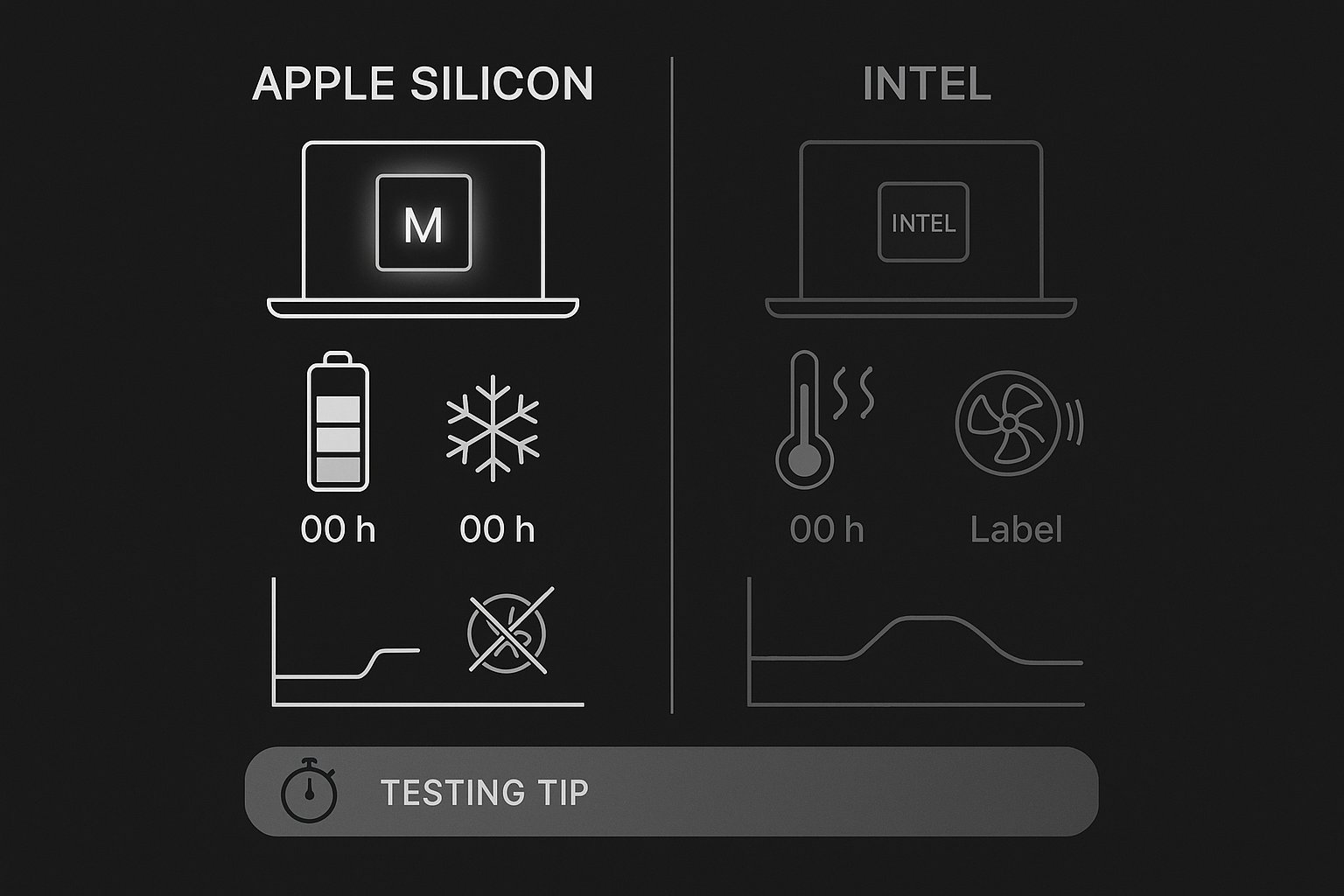
This is where the difference stops being abstract and becomes something you feel every day.
Apple Silicon laptops routinely deliver up to twice the battery life of comparable Intel models, some MacBooks reach up to 20 hours of video playback. M-series chips sip power, often consuming just 2–20W even under demanding computing loads. For perspective on efficiency, the M4 can hit 2.9 TFLOPS at around 20W in certain workloads, while a desktop GPU like NVIDIA’s RTX 4090 draws 174W for comparable tensor tasks. Different class of hardware, sure, but it illustrates how aggressively Apple optimized performance per watt.
Lower power draw means less heat, and less heat changes the whole experience:
-
The MacBook Air runs fanless. No fan at all, completely silent, even under load.
-
Intel MacBooks throttle. Under sustained workloads, Intel models heat up, spin their fans loudly, and often reduce clock speeds to stay cool. That means your “fast” Intel Mac may slow down exactly when you need it most, mid-render, mid-export, mid-compile.
-
Apple Silicon sustains performance. M-series chips hold their speed far longer because they generate so much less heat in the first place.
A practical tip if you’re evaluating a used Intel MacBook: run something demanding for 10–15 minutes before judging it. Short benchmarks hide thermal throttling: sustained ones expose it. And one caution worth adding: constant loud fan noise on an otherwise idle Mac can also be a red flag for cryptomining malware or runaway background processes, so it’s worth investigating rather than ignoring.
Software Compatibility, Virtualization, and Emulation
Here’s where the decision gets genuinely tricky, because Apple Silicon uses Arm architecture while Intel Macs use x86, and software built for one doesn’t automatically run on the other.
Native apps and Rosetta 2
Most popular applications have long since been optimized for Apple Silicon. For Intel-only apps, macOS includes Rosetta 2, a translation layer that converts x86 code on the fly. It works remarkably well, many users never notice it’s running, but there are exceptions: kernel extensions, certain audio plug-ins, specialized drivers, and older niche or professional tools may fail or misbehave. A security note here, too: if a developer never shipped an Apple Silicon build, ask whether they’re still shipping security fixes at all. Abandoned software is a liability on either platform.
Want to check an app’s architecture? Select it in Finder, press Command-I, and look at the Kind field: Application (Apple silicon), Application (Universal), or Application (Intel).
Virtualization and Windows
This is the biggest practical divide:
| Capability | Apple Silicon Mac | Intel Mac |
|---|---|---|
| Boot Camp | Not supported | Supported on compatible models |
| Windows installation | Virtualization with Windows 11 for Arm | Native Windows installation through Boot Camp |
| x86 Windows apps | Run through Microsoft’s emulation layer inside Windows for Arm | Run natively |
| Legacy drivers and peripherals | Compatibility can vary | Generally better compatibility |
| Gaming support | Limited by virtualization and Arm compatibility | Better for older Windows games and software |
| Linux virtual machines | Best with Arm-based distributions | Supports both x86 and x64 distributions |
| Performance per watt | Excellent | Generally lower |
Intel Macs remain the better choice if you need to boot directly into Windows. Apple’s Boot Camp software allows Windows to run natively on a separate partition, giving it direct access to the Mac’s processor, graphics hardware, storage, and peripherals.
Apple Silicon Macs cannot use Boot Camp. Instead, you must run Windows through virtualization software such as Parallels Desktop or VMware Fusion. In most cases, that means installing Windows 11 for Arm. Windows for Arm can run many traditional x86 and x64 Windows applications through Microsoft’s built-in emulation, but compatibility is not guaranteed.
Virtualization works well for office software, development tools, accounting applications, and many business programs. It is less predictable for applications that depend on specialized drivers, copy-protection systems, older peripherals, or high-end graphics performance. Serious Windows gamers and professionals who require native Windows drivers should look closely at these limitations before choosing Apple Silicon.
The same principle applies to virtual machines running Linux. Apple Silicon works best with Arm-compatible distributions, while Intel Macs can run traditional x86 and x64 virtual machines with fewer architecture-related restrictions.
Security: Apple Silicon Has the Newer Foundation
Performance gets most of the attention, but security is one of the most important differences between these platforms.
Apple Silicon integrates security functions directly into the system-on-chip. These include a hardware root of trust, Secure Enclave, secure boot, hardware-assisted encryption, and protected memory features. The result is a more consistent security architecture across newer Mac models.
Apple’s Secure Enclave helps protect encryption keys, biometric data, and other sensitive credentials. It is designed to isolate critical security operations from the main operating system, making it harder for malware that compromises macOS to access protected secrets.
Intel Macs vary considerably depending on their age and configuration:
- Intel Macs with the T2 Security Chip include features such as Secure Enclave, secure boot, hardware encryption, and Touch ID protection.
- Older Intel Macs without T2 lack several of these hardware-backed protections.
- Apple Silicon Macs include an integrated security architecture across the entire current product line.
That does not mean an Intel Mac is automatically unsafe. A fully updated Intel Mac with a T2 chip, FileVault enabled, a strong password, and sensible browsing habits can still be secure. However, Apple Silicon gives you a newer and more uniform hardware security baseline.
For business users, journalists, developers, and anyone handling sensitive data, this distinction matters. Hardware-backed protections can reduce the impact of certain attacks involving boot processes, storage encryption, credentials, and unauthorized system modifications.
You should still enable FileVault, use a strong login password, keep automatic updates turned on, and avoid installing software from untrusted sources. No processor architecture replaces basic security hygiene.
macOS Support and Long-Term Ownership
Apple Silicon is also the safer choice for long-term macOS compatibility.
Apple typically supports a major macOS release on a range of recent Mac models, then continues providing security updates for older supported versions for a period of time. As Intel Macs age, they are gradually removed from new macOS releases. Even when an Intel model continues receiving patches, it may lose access to newer security features, system capabilities, and application versions.
Apple Silicon Macs are more likely to remain compatible with future macOS releases because they use the architecture Apple now designs macOS around. Developers are also increasingly prioritizing native Apple Silicon builds and testing new features on M-series hardware first.
When buying a used Intel Mac, check all of the following:
- The latest macOS version it officially supports.
- Whether it has a T2 Security Chip.
- How long Apple is likely to provide security updates for that model.
- Whether the applications you use still support its processor generation.
- The condition and replacement cost of its battery.
- Whether the model has enough memory and storage for your needs.
A cheap Intel Mac may look attractive initially, but a lower purchase price does not necessarily make it better value. If it reaches the end of its macOS support window soon, you may need to replace it much earlier than an Apple Silicon model.
Repairability, Upgrades, and Ownership Costs
Neither platform is especially upgrade-friendly in recent MacBooks, but Apple Silicon makes one limitation more important: memory and storage are integrated into the system design.
With an M-series Mac, you generally cannot upgrade the RAM later. The same is true for internal storage on most modern models. If you routinely use virtual machines, edit high-resolution video, work with large design files, or run multiple professional applications, choose your memory and storage configuration carefully.
Intel Macs are not automatically upgradeable, either. Some older models allow storage or memory upgrades, while many newer Intel MacBooks use soldered components. Before buying a used Mac, check the exact model rather than assuming that all Intel machines are easy to repair.
Apple Silicon usually costs more upfront, but lower power consumption, better battery life, and longer expected software support can reduce the total cost of ownership. Intel models make more sense when you find a heavily discounted machine, need Boot Camp, or require compatibility with older x86 software that has no modern replacement.
Which Mac Should You Buy?
Choose Apple Silicon if you:
- Want the best battery life and performance per watt.
- Need a quiet laptop for work, school, travel, or creative projects.
- Plan to keep the Mac for several years.
- Want the strongest and most consistent hardware security features.
- Use modern macOS applications.
- Run video editing, photo editing, programming, or machine-learning workloads.
- Prefer a Mac that is likely to receive macOS updates for longer.
- Can work with Windows through virtualization instead of Boot Camp.
For most buyers, an M-series Mac is the better default choice. Even the base chips are fast enough for everyday work, and higher-end M-series models provide substantial performance for demanding professional workloads.
Choose Intel if you:
- Need native Windows through Boot Camp.
- Depend on an older x86 Mac application that does not work correctly through Rosetta 2.
- Use hardware that requires Intel-specific drivers.
- Need a particular Windows game or professional tool that performs poorly in virtualization.
- Are buying a temporary or highly discounted used Mac.
- Found a model with upgradeable memory or storage that fits your needs.
If you choose Intel, prioritize a newer model with a T2 Security Chip and confirm that it still receives the macOS and security updates you need. Avoid buying an older Intel Mac solely because it is inexpensive.
Apple Silicon vs. Intel: The Bottom Line

Apple Silicon is the better choice for nearly everyone buying a Mac today. It delivers faster everyday performance, dramatically better efficiency, longer battery life, quieter operation, and a more modern hardware security design. It is also the platform most likely to receive long-term macOS support.
Intel still has one major advantage: flexibility with traditional x86 software and native Windows through Boot Camp. That advantage can be decisive for specific professional workflows, older applications, specialized hardware, and certain games.
The right decision depends less on benchmark scores than on compatibility. Check the applications, operating systems, peripherals, and virtual machines you actually use. If they work natively on Apple Silicon, choose an M-series Mac. If your workflow requires native x86 Windows or legacy drivers, a supported Intel Mac may still be the more practical option—but treat it as a specialized purchase rather than a future-proof one.
Frequently Asked Questions
Can an Apple Silicon Mac run software that was designed only for Intel Macs?
Yes. Most Intel-based Mac applications can run through Rosetta 2, Apple’s translation technology. However, compatibility can become an issue with older system extensions, specialized drivers, audio plug-ins, and software that depends on Intel-specific components. Before switching, check your most important applications rather than assuming every Intel app will work identically.
Does Apple Silicon affect virtual machines differently from Intel Macs?
Yes. Apple Silicon Macs use ARM-based processors, so virtual machines generally work best with ARM-compatible operating systems. Intel Macs can run traditional x86 and x64 virtual machines more directly. This difference matters if your development, testing, or IT workflow requires virtual machines that depend on a specific CPU architecture.
What should I check before buying a used Intel Mac?
Don’t judge a used Intel Mac by its processor generation alone. Check the exact macOS version it supports, whether it has a T2 Security Chip, its current security-update status, battery condition, available memory and storage, and compatibility with the applications you need. A low purchase price can become expensive if the machine is approaching the end of its useful software-support period.
Does unified memory make Apple Silicon better for every workload?
Not necessarily. Unified memory allows the CPU and GPU to access the same memory pool efficiently, but it also means you cannot simply upgrade RAM later on most Apple Silicon Macs. Workloads involving virtual machines, large datasets, professional media projects, or multiple demanding applications may therefore require more memory at the time of purchase.
Can an Apple Silicon Mac replace an Intel Mac for software development?
For many developers, yes, but it depends on the development environment. Modern development tools generally have Apple Silicon support, while projects that depend on Intel-only binaries, legacy x86 containers, architecture-specific dependencies, or older virtualization workflows may require additional configuration or emulation.
Does an Intel Mac with a T2 chip have the same security as Apple Silicon?
No. A T2-equipped Intel Mac has important hardware-backed security features, but Apple Silicon integrates security capabilities more deeply into the overall system architecture. The specific security capabilities also depend on the Mac model and macOS version, so “Intel with T2” and “Apple Silicon” should not be treated as identical security platforms.
Is battery health more important when buying a used Intel Mac?
Yes. Intel MacBooks can already have higher power consumption than comparable Apple Silicon models, so an aging battery can make the difference more noticeable. Check the battery’s condition and cycle information rather than relying only on the advertised battery life of the model when it was new.
When does buying an older Intel Mac actually make sense?
An older Intel Mac can still make sense when you have a specific compatibility requirement, such as native Windows through Boot Camp, legacy x86 software, or hardware that depends on Intel-compatible drivers. It is less compelling when the only reason for choosing it is a lower purchase price and your workflow already works on Apple Silicon.


